StickerBlox guide
Use Your Roblox Avatar as iMessage Stickers
Bring your avatar reactions into iPhone conversations. StickerBlox can generate a personal set, prepare the images for Messages, and sync the finished pack to its iMessage extension.
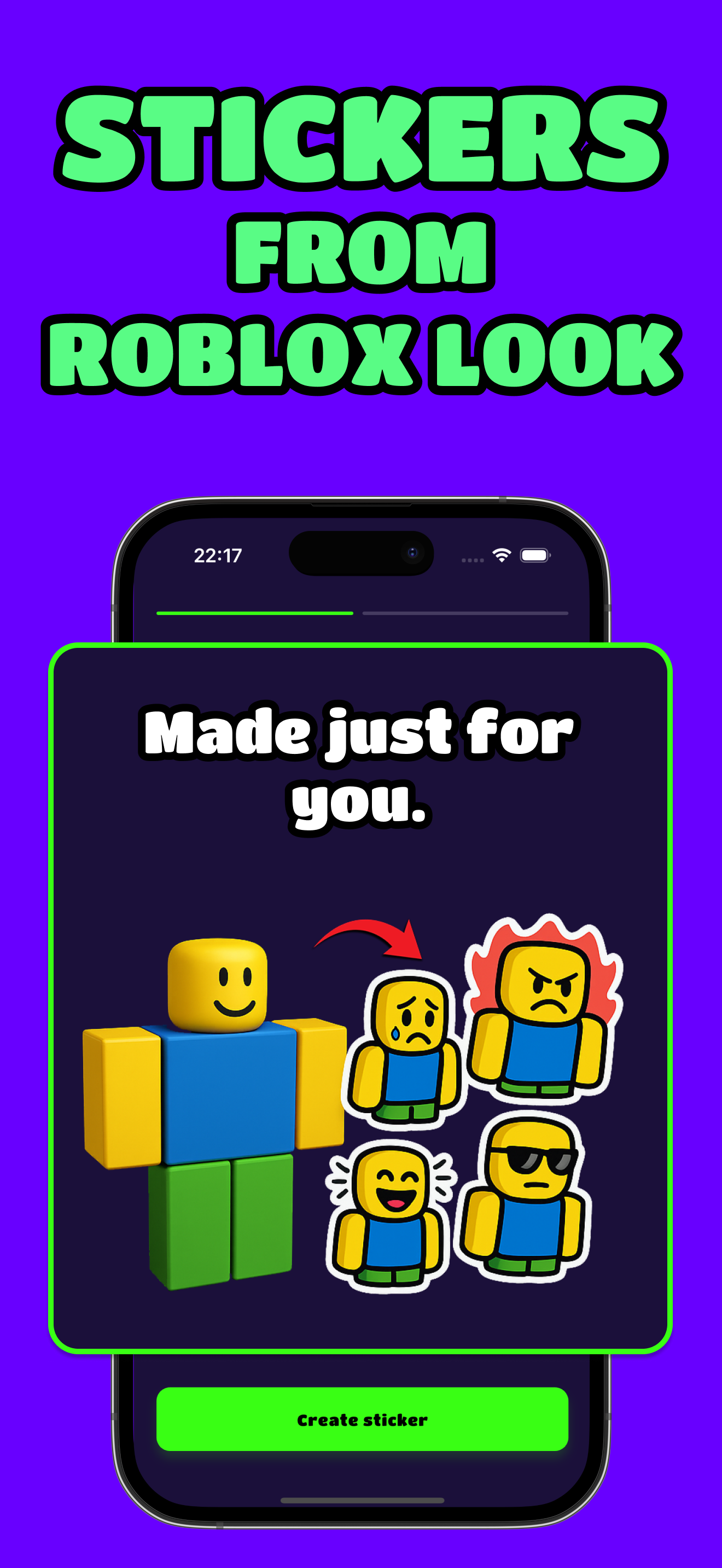
Create the reactions you want to send
Start in StickerBlox by finding the public avatar you want to use. Choose a visual style and select a few reactions that make sense in everyday conversations.
A small Messages set could include happy, LOL, surprised, facepalm, love, victory, and sleepy. A gaming group might add gamer, hyped, or cool. The sticker pack guide can help you plan a balanced set before spending credits on generation.
Review the finished sticker set
Open the completed pack and look at each result as a small image. The avatar should be recognizable, the pose should communicate quickly, and the transparent border should remain clear against both light and dark backgrounds.
Remove a result that does not fit the set. A shorter pack with distinct reactions is easier to use than a crowded pack with several images that communicate the same thing.
Sync the pack to iMessage
When the set is ready, use Sync to iMessage in StickerBlox. The app downloads and prepares the selected PNG files in the shared container used by the StickerBlox Messages extension.
Then:
- Open Messages on the same iPhone.
- Enter a conversation and open the Messages app drawer.
- Select StickerBlox.
- Reload the extension if the newly synced set does not appear immediately.
- Tap a sticker to insert it into the conversation.
The exact appearance of the Messages app drawer can differ by iOS version, but the set remains connected to the StickerBlox extension on the device.
Copy or share an individual PNG
You do not need to sync a full set every time. StickerBlox can also copy or share a single generated image, which is useful when you only want one reaction or need to send it through another app.
The transparent PNG format keeps the character separate from a rectangular screenshot background. The receiving app may still resize or compress the file according to its own rules.
Refresh the pack when your outfit changes
If you switch to a new avatar outfit, create another set rather than mixing unrelated looks into the same group. Separate packs make it easier to find a consistent version of your avatar in a conversation.
For accessories and detailed outfits, read how to turn a Roblox outfit into stickers. For the full creation workflow, use the avatar sticker tutorial.
Put your avatar reactions in Messages
Download StickerBlox on iPhone, create a small reaction set, and sync it to the included iMessage extension.