StickerBlox guide
How to Turn Your Roblox Avatar into Stickers
A Roblox avatar already has a look, personality, and story. StickerBlox helps you carry that identity into chats and social posts by transforming the public avatar into a custom pack of shareable stickers.
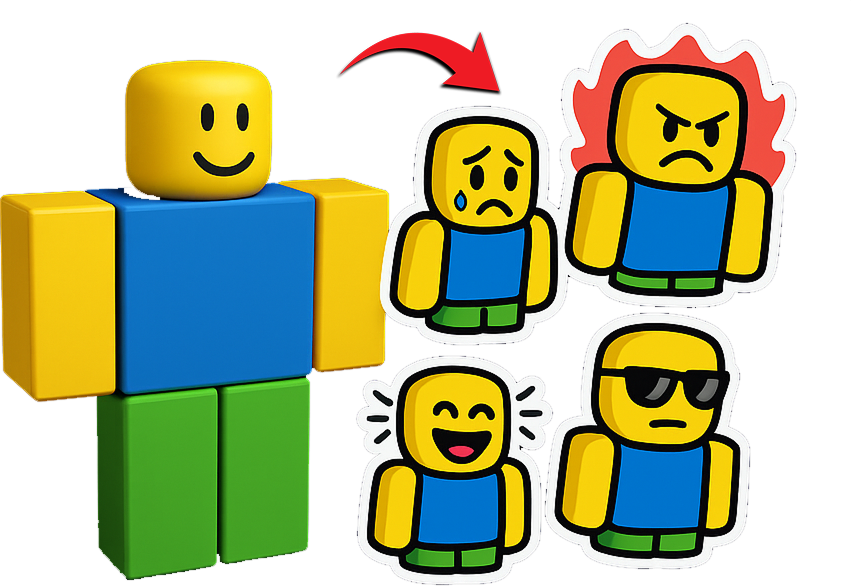
Start with the public avatar
You do not need to rebuild a character inside StickerBlox. Start with the Roblox avatar that already represents you.
Open the app and search for a public Roblox username, or paste a public profile link. StickerBlox uses the available avatar reference to prepare the character for sticker generation. It does not need a Roblox password, and you should never share a password with an avatar or sticker tool.
Before generating a pack, check that the displayed avatar is the one you intended to use. Similar usernames can be easy to confuse, especially when they contain repeated letters or numbers.
Choose a style that fits the avatar
The same avatar can feel very different depending on the sticker style. StickerBlox offers several visual directions, including chibi cartoon, pixel art, gothic, tattoo-inspired, and fabric or plush looks.
Think about where you plan to use the stickers:
- Chibi cartoon works well for expressive reactions and friendly chats.
- Pixel art suits retro game themes and compact icons.
- Gothic emphasizes darker outfits and dramatic accessories.
- Tattoo-inspired styles use bold shapes and strong outlines.
- Fabric or plush gives the avatar a softer, toy-like appearance.
A simple avatar can work with nearly any style. If the outfit already has many small accessories, choose a style with clean shapes so the character remains readable at sticker size. See the outfit and accessory guide for more ways to keep a detailed look recognizable.
Generate the sticker pack
Once you select a style, StickerBlox creates a set of reactions based on the avatar. Generation can take a little time because the app is producing new images rather than applying a basic color filter.
Review the completed pack at both full size and thumbnail size. A useful sticker should remain recognizable when it appears beside a message. Look for a clear face, a readable pose, and enough contrast between the avatar and the border.
AI-generated images can vary, so small details may not always match the avatar perfectly. If a result does not capture the look you want, try another available style or generate a new version.
Save transparent PNG stickers
StickerBlox exports stickers as PNG images with transparent backgrounds and a clear border. Transparency lets the sticker sit naturally on different backgrounds instead of appearing inside a rectangular screenshot.
After saving a sticker, you can use the image anywhere that accepts PNG files. The exact sharing workflow depends on the receiving app, but common destinations include messages, Discord, TikTok, Instagram, and simple graphics made for friends.
Keep the original file when possible. Repeated screenshots or image compression can soften the border and make small details harder to see.
Share thoughtfully
StickerBlox is an independent app and is not affiliated with or endorsed by Roblox. When you create stickers, use avatars and images responsibly. Avoid presenting another person’s avatar as your own, and follow the rules of the platform where you post or share the images.
The strongest packs usually begin with a familiar avatar, use one consistent style, and focus on expressions you will actually use in conversation. Start with a small set, see which reactions become favorites, and build from there. The sticker pack guide and sticker ideas list can help you choose the first reactions.
Make stickers from the avatar you already use
Open StickerBlox on iPhone, find a public avatar, choose reactions and a visual style, then generate your first custom stickers.