StickerBlox guide
Create a Custom Roblox Avatar Sticker Pack
A good sticker pack is more than a folder of images. It gives your avatar a small vocabulary of reactions you will actually use—from a quick laugh to a victory pose, facepalm, or sleepy sign-off.
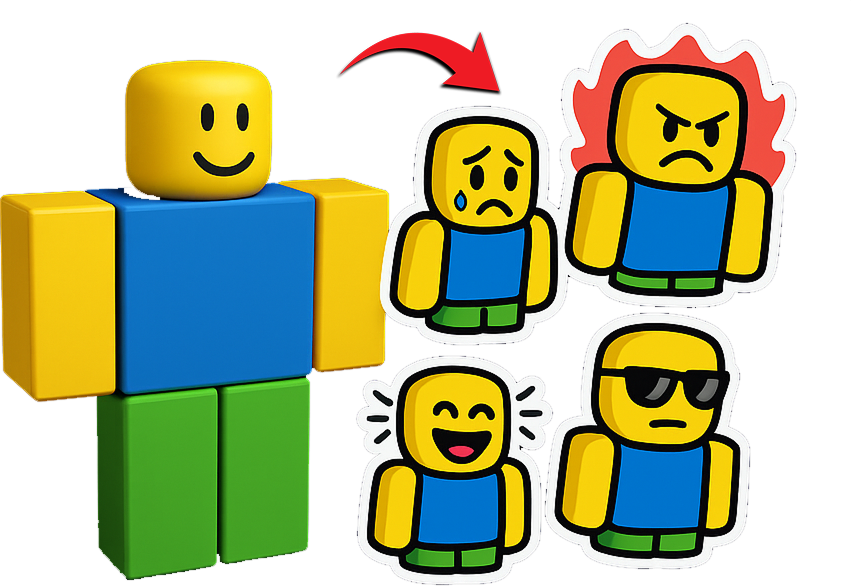
Begin with a small reaction vocabulary
The best first pack covers the moments that happen in almost every group chat. You do not need dozens of images to make the pack useful.
A practical starter group might include:
- Happy or LOL for an easy positive response
- Surprised or shocked for unexpected news
- Love or heart eyes for appreciation
- Cool or victory for a confident response
- Facepalm or angry for frustration
- Sleepy for a late-night sign-off
StickerBlox includes these kinds of expression choices so you can select the reactions that fit how you communicate. For more combinations, browse Roblox avatar sticker ideas.
Use one avatar look as the visual anchor
Your outfit, colors, and accessories are what make the pack personal. Before generation, make sure the public avatar preview shows the version you want to turn into stickers.
If the avatar has a detailed outfit, decide which elements matter most. A favorite hat, distinctive color combination, hairstyle, or shoulder accessory may be more important for recognition than a tiny detail hidden behind the pose.
The generator aims to preserve what is visible in the reference, but AI output can vary. The outfit sticker guide explains how to prepare a complex look for clearer results.
Keep the art direction consistent
One visual style ties different reactions together. Chibi, pixel, gothic, tattoo-inspired, and plush treatments each change the mood, but the pack feels strongest when the main set shares one direction.
Test a style with an expressive sticker first. Look at it at full size and again as a small thumbnail. If the avatar is recognizable and the emotion is easy to read, use that direction for the rest of the pack.
You can still make a second themed pack later. For example, one set might use bright chibi reactions for everyday chats while another uses pixel art for gaming conversations.
Review each sticker before sharing
Generation is creative rather than perfectly deterministic. Check every result for a clear outline, a readable pose, and a useful emotion. Remove images that feel repetitive or do not resemble the avatar well enough.
Avoid keeping an image just to increase the pack size. A focused pack of distinct reactions is easier to browse and more enjoyable to use.
Prepare the pack for messages and posts
StickerBlox generates transparent PNG images with a visible border, so each character can sit naturally over a chat or social background. You can save and share individual images through apps that accept PNG files.
On iPhone, sync a selected set to the StickerBlox Messages extension, then open it from the app drawer in a conversation. Follow the complete Roblox avatar iMessage sticker guide if Messages is your main destination.
Creating each sticker uses a credit. Prioritize the reactions you will use most, review the first results, and expand the set after you settle on the avatar and style.
Build a reaction pack that looks like your avatar
Choose the expressions you use most, keep one recognizable style, and create a personal pack in StickerBlox.