StickerBlox guide
A Roblox Avatar Sticker Maker for Your Own Look
StickerBlox is an avatar-first sticker maker. Instead of choosing a generic character, you begin with the public game avatar you already recognize, select reactions, and turn that look into personal chat stickers.
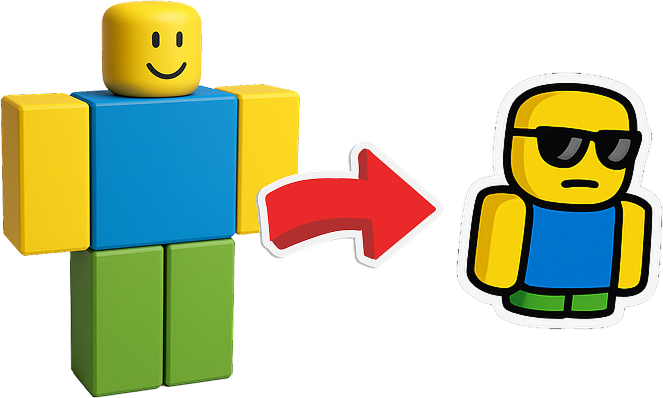
Start with identity, not a blank canvas
Most sticker tools begin with a stock face, a template, or an empty drawing area. StickerBlox begins with the avatar that already represents you in a block-style game world.
Search for a public username or paste a public profile link, then confirm that the preview shows the avatar you intended to use. StickerBlox only needs the public avatar reference. It does not ask for a Roblox password, and you should never give a password to any avatar or sticker tool.
If you want the full step-by-step workflow, begin with how to turn your avatar into stickers.
Choose the reaction before the visual style
A useful sticker communicates something quickly. Pick the reaction first: happy, shocked, sleepy, victory, facepalm, love, gamer, or another mood you actually send in conversations.
Then choose a visual style that supports that reaction. A bright chibi look can make excitement easier to read, while pixel art can fit a retro gaming mood. Gothic or tattoo-inspired treatments can work for darker outfits, and a plush or fabric look can soften the same avatar.
The goal is not to include the most detail possible. The goal is to make the avatar and emotion recognizable at the small size used in a message thread.
Keep the avatar recognizable
StickerBlox uses the public avatar image as a visual reference. The generator is prompted to preserve visible colors, shapes, accessories, and the overall identity while changing the illustration style and pose.
AI-generated details can vary. Tiny accessories may be simplified, a pose can change how an item appears, and a highly layered outfit can become visually busy. Before creating a full set, generate a reaction and check three things:
- Can you recognize the avatar at thumbnail size?
- Is the expression or pose clear without explanation?
- Do the most important outfit colors and accessories still read well?
For a detailed avatar, use the Roblox outfit sticker guide before choosing a style.
Export a sticker, not a screenshot
A screenshot usually includes a rectangular background and extra interface elements. StickerBlox prepares generated art as a transparent PNG with a clear border around the character.
That format is easier to place in a chat, story, post, or simple graphic. On iPhone, you can also sync a set for use in Messages. Read the iMessage sticker walkthrough for the app-to-chat flow.
Grow one good sticker into a useful pack
Once the first sticker feels right, create more reactions in the same visual style. Consistency makes a group of images feel like one intentional pack instead of unrelated illustrations.
Choose expressions that cover different moments: a greeting, a laugh, a celebration, a surprised response, a frustrated reaction, and a quiet or sleepy mood. The custom sticker pack guide has a practical starter set.
Sticker generation uses credits, with one credit used for each generated sticker. Start with reactions you expect to use often, then expand after you know which style works best for the avatar.
Try the avatar-first sticker maker
Download StickerBlox, find your public avatar, and turn a favorite reaction into a sticker made for chats and social posts.